 wile
wileReview before continuing
Inspect the result at an approval step. The workflow waits for your decision before moving on.
Turn repeatable work into agent workflows on your Mac.
Download for macOSReal agent runs with synthetic inboxes. Email and Telegram actions are local previews; nothing is sent.
Phone approval is illustrated; approving through Telegram is not implemented. The recorded run was approved in Wile.
This condensed edit combines native creation and scheduled-run captures with illustrated email and phone messages. Codex, Claude and River AI make real cloud model calls; privacy depends on the providers you configure.
Open the full videoWorks with the agents you already use
 Codex
Codex Claude Code
A day with Wile
The conversation. The decision. The time to think. Let Wile handle the briefs, drafts, and follow-ups on your laptop while you focus on what needs you.
01An agent beside your canvas
Tell the assistant the result you want. Refine the steps, tools, handoffs, and approvals together, and see the whole design on the canvas. Below: an example request, shown before sending.
Meet your workflow assistant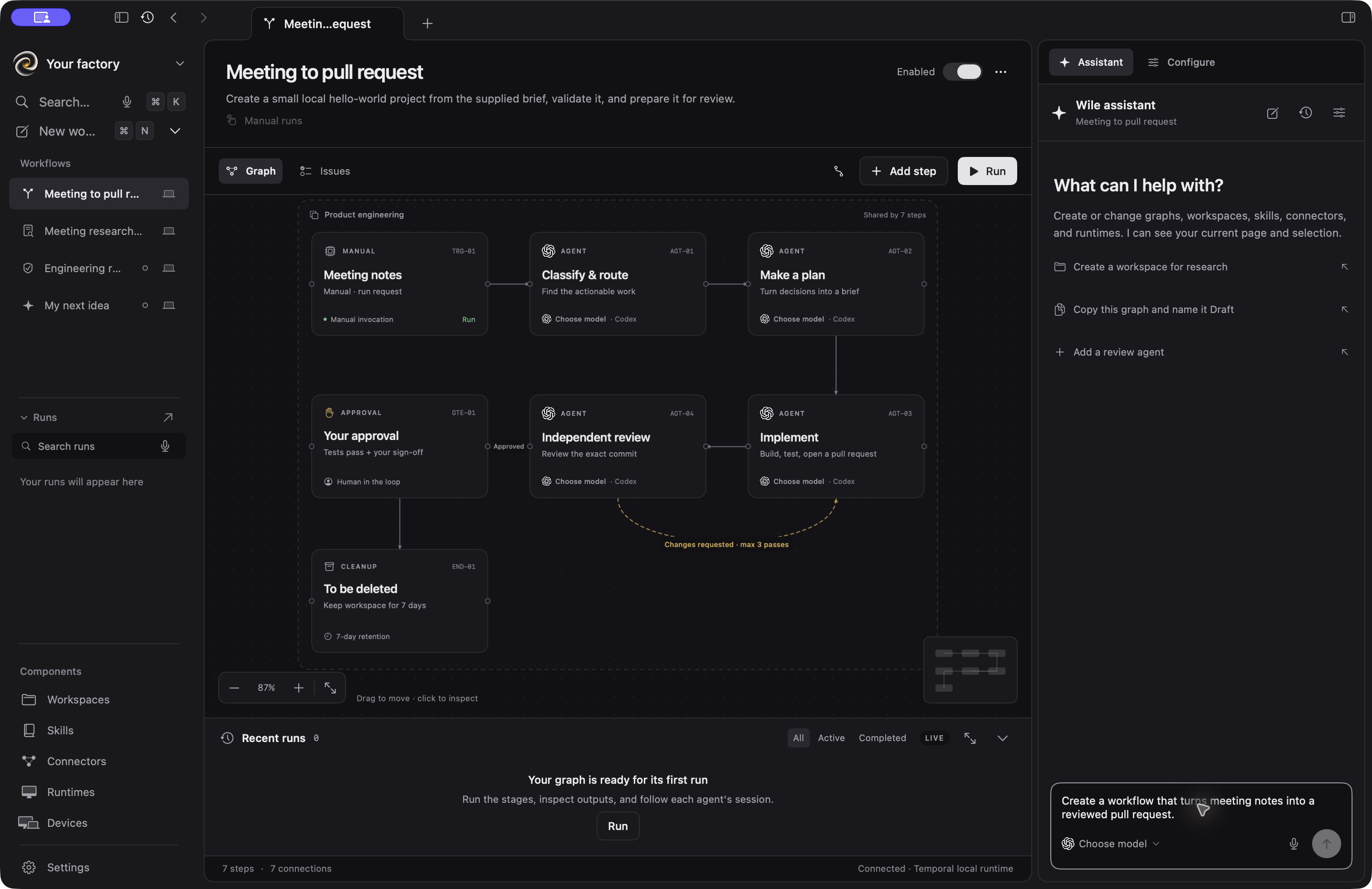
Pick the provider and model for each agent step.
Connect steps with explicit file, document, or text handoffs.
Pause at a human approval before the workflow continues.
02Codex apps & MCP
Browse the Codex apps available to your account, or add your own MCP servers. Then decide which tools each agent step can use.
See how Codex connections work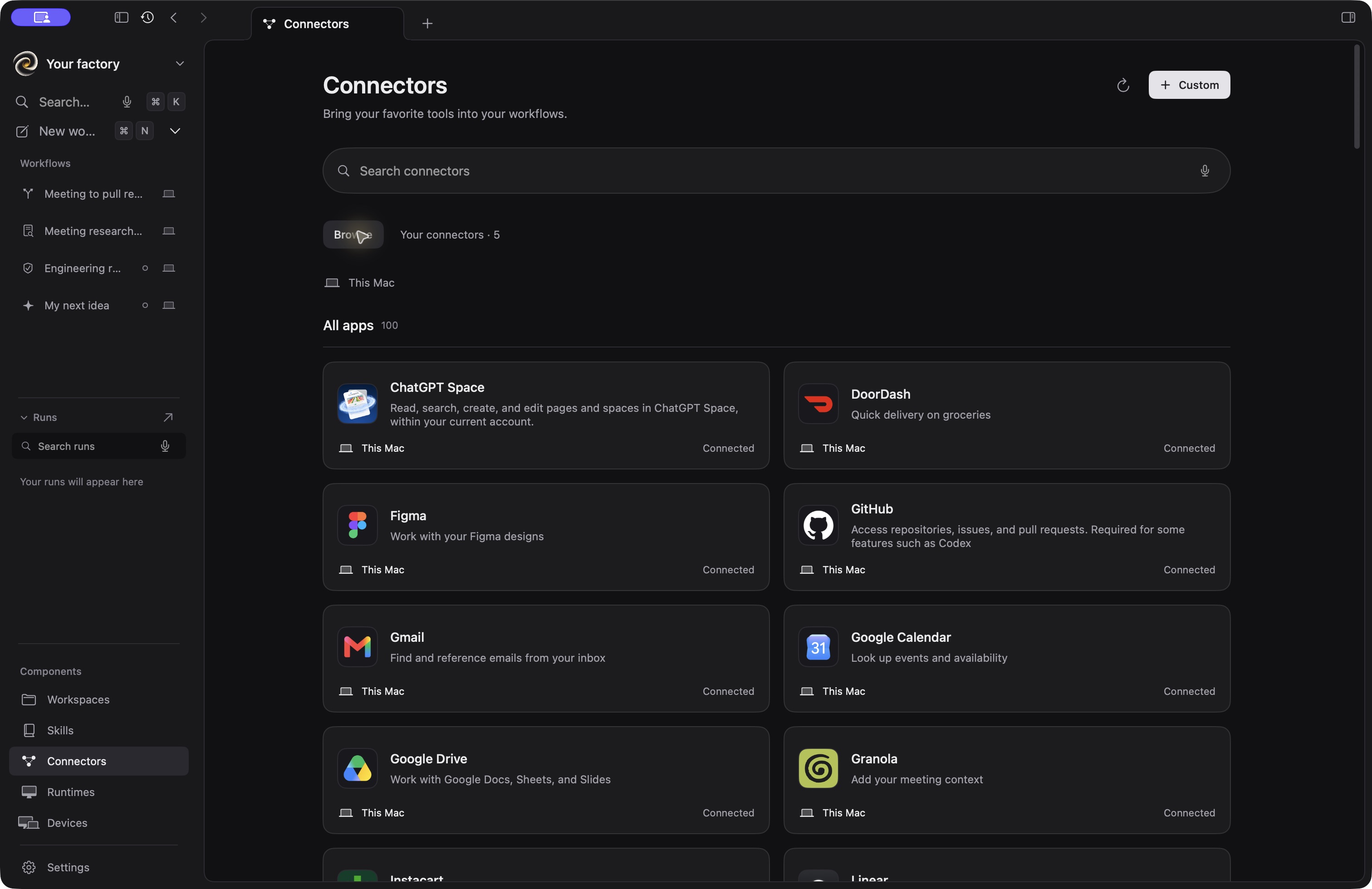
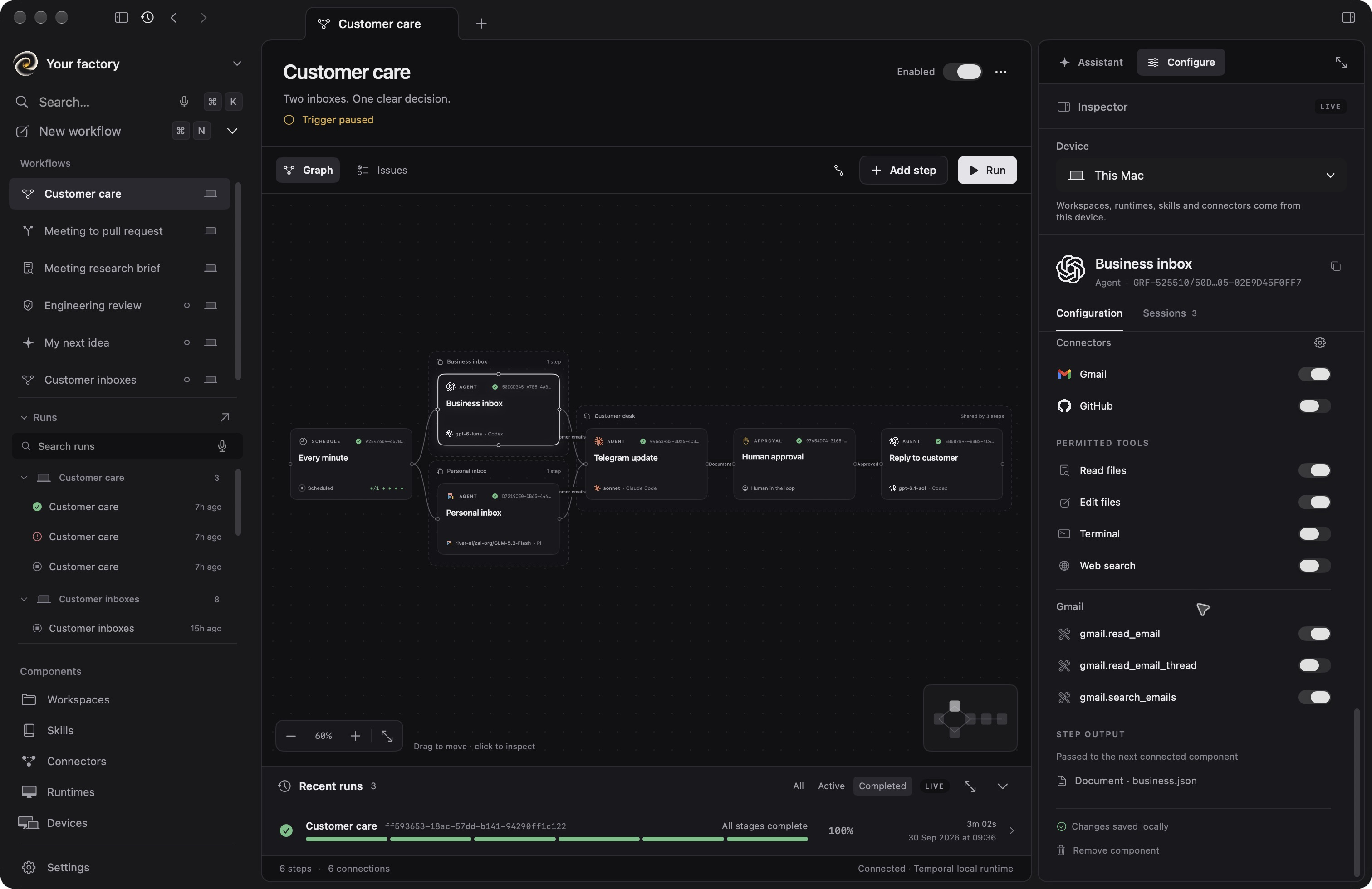
 GitHub
 Gmail
Gmail Telegram
 Granola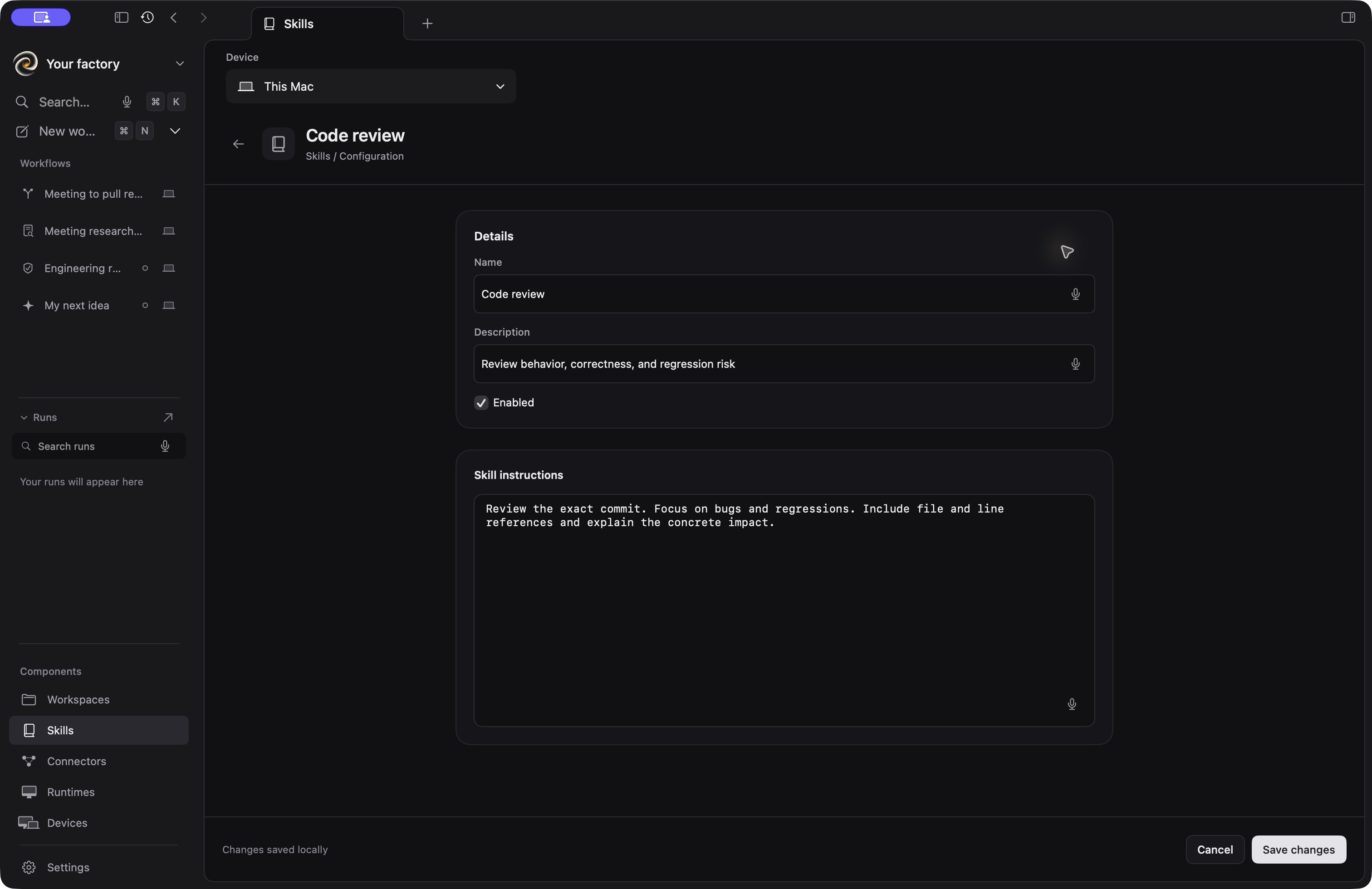
03Your way of working
Your review checklist. Your writing style. The context that makes a good result yours. Save instructions as skills and attach them to the steps that need them.
Skills live in readable files you can edit and version. Each run captures the ones it used.
Make your expertise reusableYou stay in charge
Inspect the result at an approval step. The workflow waits for your decision before moving on.
See stage progress, agent activity, outputs, and failures in the run history.
Keep a workflow on this Mac or manage it on a connected device that stays available.
Start with the work you repeat
From engineering to research to the weekly update. Adapt an example to a process you already know.
Give agents a clear brief and a copy of your project. Let one implement, another review, and a human decide what happens next.
A change you can inspect, with the work behind it.
Gather permitted sources, compare the findings, and turn them into a concise brief. Keep the references alongside the recommendation.
A decision brief with context you can trace.
Attach your voice guide as a skill. Draft content for each channel, check it against the brief, and review the set before publishing through your connected tools.
A consistent set of drafts, ready for your review.
Schedule a workflow to gather updates from the files and tools you permit. Summarize progress, flag open questions, and hold the report for review.
One readable update instead of another round of chasing.
How it works
Install Wile and configure Codex, Claude Code, or Pi. Use the provider and models that fit your work.
Ask the assistant to create a workflow. Refine its steps, context, outputs, and approvals.
Start manually and inspect the first result. Add a schedule or trigger when it’s ready.
Wile is a native Mac app for designing and supervising agent workflows. Connect steps into a repeatable process, give each agent the tools it needs, and add a human approval before the next action.
You can describe a workflow to the built-in assistant or arrange its steps visually. Connecting external tools may require account sign-in or setup. Start with a small workflow using local files, then add connections as you need them.
Wile supports Codex, Claude Code, and Pi. Choose an available model for each agent step. Pi can use configured local or cloud models. Your provider’s sign-in requirements, usage limits, and charges still apply.
Workflow configuration and run history live on the device running the workflow. The model providers and connected services you choose may receive prompts, files, or tool inputs. A local model does not make external connector calls local. Review the tools enabled for each step.
Wile supports the connected-app tools available through your Codex account, alongside configured MCP connections and Wile skills. Browse them in Connectors and choose tools for each step. Full Codex plugin bundles, including their hooks and plugin skills, are not automatically imported. App availability depends on the account and setup of the device running the workflow.
Yes, while the workflow’s device and runtime are available. Start manually, use a schedule, or configure a supported polling trigger. History persists across restarts, but a sleeping Mac cannot keep executing local work. You can manage workflows on a connected device that stays online.
Create a Wile account with Google or verified email. The download page checks the latest published release and shows when a public download is unavailable. The Mac app requires Apple Silicon and macOS 15 or later.
Tell us the work you want to hand off. Let’s build your first workflow.
Create accountApple Silicon · macOS 15 or later